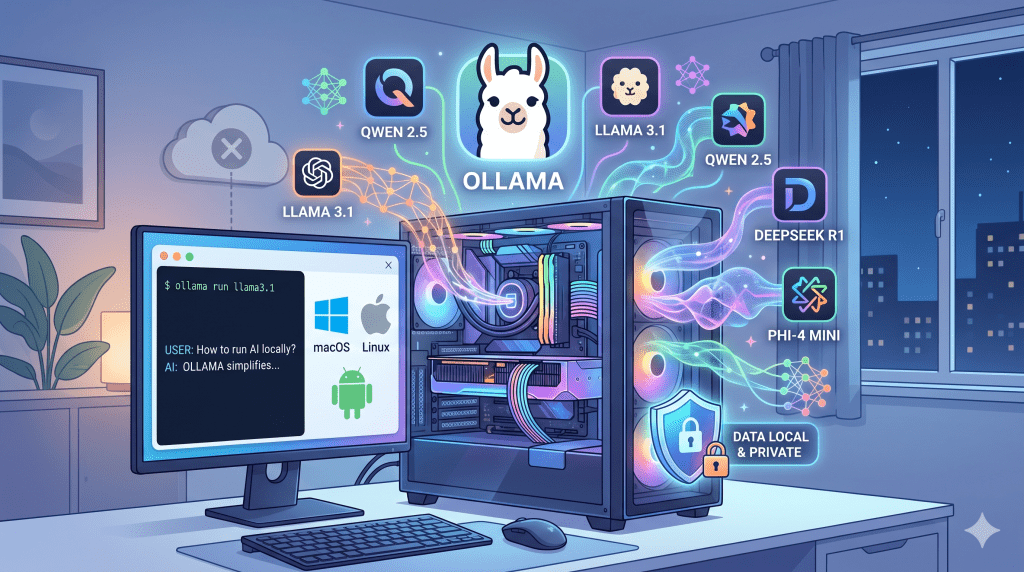
Running AI on your Local Server
Generative AI is powerful, but relying entirely on cloud APIs can become expensive and introduce privacy concerns. Enter Ollama—the open-source tool that has become the de facto standard for running Large Language Models (LLMs) on your own machine.
If you have ever wanted to chat with, build on, or experiment with models like Llama 3, Qwen, or DeepSeek without paying per-token fees or sharing your data, Ollama is exactly what you need. Often described as the “Docker for local AI,” it simplifies the complex process of downloading, configuring, and running AI models into a few simple terminal commands.
What Does Ollama Do?
At its core, Ollama is a lightweight framework and inference engine. It takes open-weight AI models, packages them into an optimized format, and runs them locally on your hardware.
- Privacy First: When running locally, your prompts and data never leave your computer.
- API Compatibility: Ollama automatically sets up a local REST API (at
localhost:11434) that perfectly mimics the OpenAI API format. You can plug Ollama directly into existing apps and tools without rewriting your code. - Hardware Optimization: It intelligently utilizes whatever hardware you have—whether that is an NVIDIA GPU, an AMD card, an Apple M-series chip, or just a standard CPU.
Supported Operating Systems
Ollama is designed to be highly accessible and runs natively across all major platforms:
- macOS: Works beautifully out of the box on Apple Silicon (M1-M4) using Metal, and functions on older Intel Macs.
- Windows: Native support for Windows 10 and 11 (64-bit). It automatically detects and configures itself for NVIDIA or AMD GPUs.
- Linux: The most robust environment for server deployments. Supports Ubuntu, Debian, Fedora, Arch, and more.
Step-by-Step Installation Guide
Installing Ollama is remarkably straightforward. Choose your operating system below:
For Windows
- Visit the official Ollama download page (https://ollama.com/download) and download the
.exeinstaller. - Run the installer and click through the standard setup prompts.
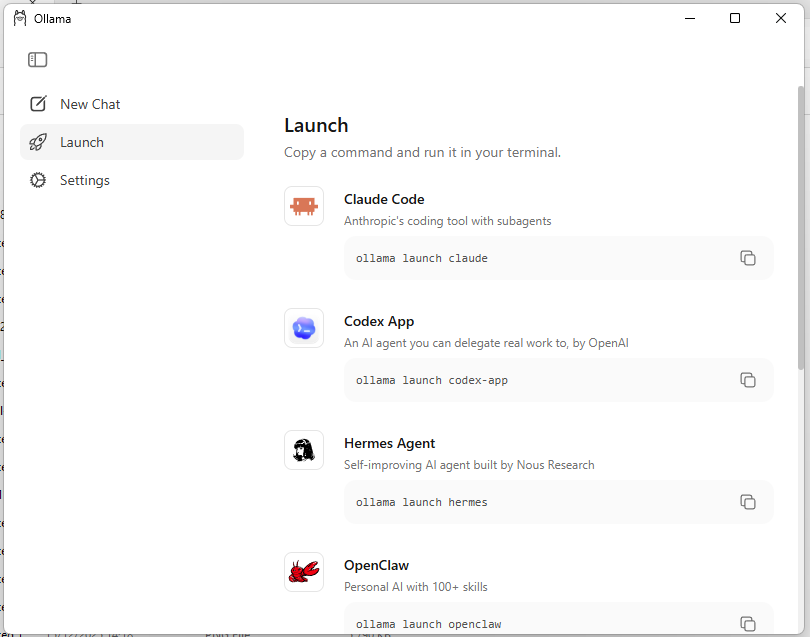
- Once finished, Ollama will run as a background service and appear in your system tray. You will also see the below screen.
- Open PowerShell or Command Prompt and type
ollama -vto verify the installation.

For macOS
- Download the macOS
.zippackage from the Ollama website. - Extract the file and drag
Ollama.appinto your Applications folder. - Open the app. You will see a small llama icon appear in your top menu bar.
- Alternatively for developers: Open your terminal and run
brew install ollama.
For Linux
Open a new terminal session and run the official automatic installation script:
Bash
curl -fsSL https://ollama.com/install.sh | sh
This script automatically downloads the software, configures your GPU drivers (if present), and sets up Ollama as a systemd background service.
Running Your First Model
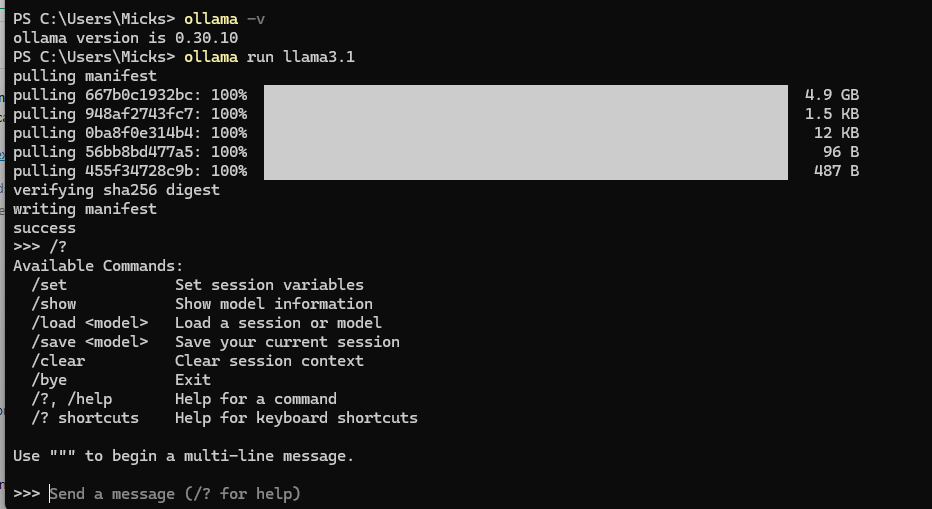
Once installed, open your terminal and run your first model. For a great balance of speed and intelligence, try Meta’s Llama 3.1 (8B):
Bash
ollama run llama3.1
The first time you run this command, Ollama will download the model weights (about 4.9 GB). Once downloaded, it will drop you into a >>> chat prompt where you can start talking to the AI immediately.
Deployment Options: From Free to Pro
Ollama offers maximum flexibility depending on whether you want to use your own hardware or leverage their cloud infrastructure.
| Plan | Price | Best For | What You Get |
| Local Deployment | $0 | Complete privacy and offline use | Unlimited usage, access to 40,000+ open models, and local API access. You are only limited by your own computer’s hardware. |
| Ollama Cloud Free | $0 | Prototyping without a GPU | 1 concurrent cloud model, a monthly GPU-time quota, and access to lighter models hosted on Ollama’s datacenter. |
| Ollama Cloud Pro | $20/mo | Daily developer workflows | 3 concurrent cloud models, 50x the free usage quota, and access to the full catalog of massive cloud models. |
| Ollama Cloud Max | $100/mo | Heavy agent or RAG workloads | 10 concurrent cloud models and enough usage capacity for sustained, intensive processing. |
If you have a decent laptop, starting with the Free Local Deployment is the perfect way to explore open-source AI without spending a dime.